
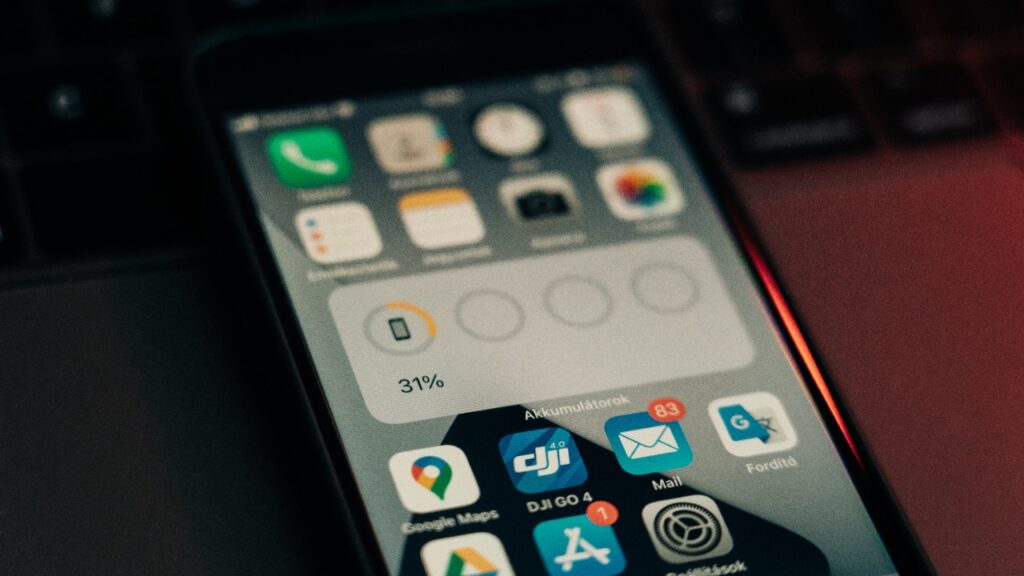
When your iPhone says it’s low on storage, it’s tempting to blame photos and videos. But a lot of space gets eaten up quietly in the background—by settings, caches, downloads, and app behavior you might not think to check. Here are eight common space-hogging culprits and what you can do about each one.
1. Message attachments (Photos, videos, and voice notes)
Texts don’t just take up space as words—attachments can balloon over time, especially in busy group chats. Photos, videos, stickers, GIFs, and voice messages all count toward storage, and many people never delete old threads.
To check, go to Settings > General > iPhone Storage > Messages to see categories like Photos and Videos. You can delete large attachments directly there, and you can also set messages to auto-delete in Settings > Apps > Messages > Keep Messages (options typically include 30 Days or 1 Year) if you don’t need everything forever.
2. App caches and temporary files
Many apps store temporary data to make them feel faster—think social apps, browsers, and streaming services. Over time, those cached files can become surprisingly large, even if the app itself looks small in the App Store.
iOS doesn’t offer a universal “clear cache” button for every app, so the fix varies. Check Settings > General > iPhone Storage to see which apps are taking the most space; if an app’s “Documents & Data” is huge, deleting and reinstalling the app often clears accumulated cache (just make sure you’re signed in and know your passwords first).
3. Downloaded music, podcasts, and offline audio
Offline listening is convenient, but downloads add up fast—especially if you’ve set episodes or playlists to download automatically. Podcasts can be sneaky here because new episodes keep arriving while older ones stick around.
Review what’s stored by checking Settings > General > iPhone Storage and tapping apps like Music or Podcasts. In Podcasts, look for settings related to downloads and episode retention so completed or old episodes don’t pile up.
4. Offline video from streaming apps
Saving shows and movies for flights is great—until you forget they’re still there weeks later. Video files are large, and even a few downloads can take a huge bite out of your storage.
The fastest fix is usually inside the streaming app itself: look for a Downloads section and remove what you’ve already watched. If you’re unsure which apps are hoarding video, Settings > General > iPhone Storage will show you what’s taking the most space so you can target the biggest offenders.
5. Photos you “deleted” (Recently Deleted album)
Deleting a photo doesn’t always remove it immediately. The Photos app keeps items in Recently Deleted for a period of time before permanently erasing them, which means that “freed” space may not actually be available yet.
Open Photos > Albums > Recently Deleted and review what’s sitting there. If you’re comfortable removing them for good, you can delete them permanently to reclaim space right away.
6. iCloud Photos optimization misunderstandings
iCloud Photos can either store full-resolution originals on your device or keep smaller versions locally while originals live in iCloud. If your phone is set to keep originals and you have a big library, storage can disappear quickly—especially on smaller-capacity models.
Check Settings > [your name] > iCloud > Photos to see what’s enabled and which option is selected. If you use iCloud Photos and you’re tight on space, “Optimize iPhone Storage” is designed to reduce local storage use by keeping smaller device-friendly versions when possible.
7. Large app downloads and “Documents & Data” inside apps
Some apps carry a lot of baggage: downloaded maps, project files, saved media, or in-app assets for games. Even if you don’t use an app much anymore, its stored files might still be sitting there.
Go to Settings > General > iPhone Storage and tap a large app to see its breakdown. If the app supports it, you can delete specific downloads inside the app; otherwise, consider using Offload App (removes the app but keeps its data) or deleting it completely if you no longer need what it’s storing.
8. Safari website data, downloads, and reading list
Safari can build up website data over time: cached resources, cookies, and other stored files. If you download files through Safari or save pages for offline reading, that can contribute too—quietly.
You can review and clear Safari’s stored data in Settings > Apps > Safari, where options include clearing history and website data. If you’ve been downloading files, also check the Files app (especially the Downloads folder) to remove items you don’t need anymore.
If you’re consistently running low, a quick scan of Settings > General > iPhone Storage can point you to the biggest culprits in minutes. Knock out the hidden space-eaters above, and you’ll usually buy yourself a lot more breathing room—without deleting the stuff you actually care about.